
HELP
How to collect payments in RunMags
Find out who still owes you money, record each payment when it arrives, and chase the customers who are late. In RunMags all of this is under Finance > Collection.
Checked against the product on
Before you start
- You need access to Finance in the left-hand menu. If you cannot see it, ask your RunMags administrator.
- The invoices must already exist. See How to invoice advertisers and sync to accounting.
Steps
- In the left-hand menu, open Finance > Collection.Each tab along the top is a list, with the number of rows in brackets.
- Open Outstanding by organization. Each row is one customer, with what they owe, the Oldest due date, the Reminder level and the Last reminder sent.
- Open Outstanding invoices to see each unpaid invoice on its own row.
- To chase a late customer, switch on Send reminders on their row in Outstanding by organization. Check the Statement date at the bottom left, then click Send statement.Statement shows the statement without sending it.
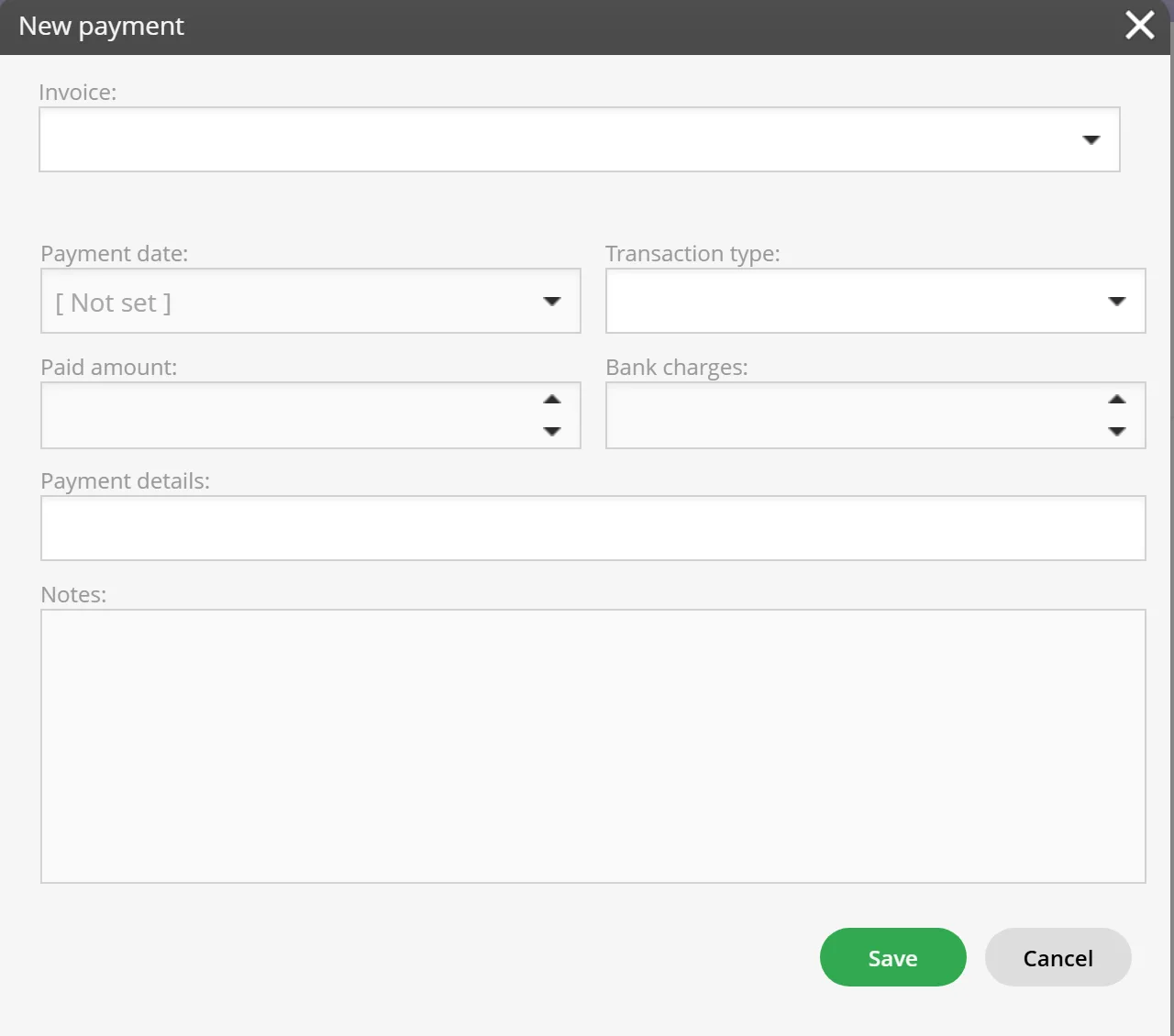
- When money arrives, open Register payments and click New.
- In New payment, choose the Invoice, and fill in Payment date, Transaction type and Paid amount. Add Bank charges, Payment details or Notes if you need them.
- Click Save. The payment is listed on the Payments tab.

What you see
- Outstanding by organization: one row per customer, the total outstanding at the foot, and the buttons Statement and Send statement.
- Outstanding by invoice row: one row per invoice line, with Overdue days.
- Register payments: the unpaid invoices with Due Date, Days OD, Incl. tax, Paid and Outstanding.
- Payments: every payment you registered, with Payment date, Trans. type, Paid amount and Bank charges.
Good to know
- Older guides call this place Finance > Accounts receivable. The tabs are now under Finance > Collection.
- Enter the amount you received in Paid amount. If it is less than the invoice, the rest stays outstanding.
- Every list has an Export button, to take the list into a spreadsheet.
- Advertisers can pay an invoice by card in the advertiser portal: they open Invoices, select the invoice and click Pay now. This needs your Stripe account connected to RunMags and a card saved in the portal’s Cards tab.
What it does not do
- Register payments only records money you already have. It does not take a card payment.
- It does not read bank files or Stripe payouts. You register each payment yourself.
- No direct debit or ACH payments.
- It does not pause reminders for a disputed invoice, and it does not add reminder fees.
If something goes wrong
- You cannot see Finance in the left-hand menu. Your user has no Finance rights. Ask your RunMags administrator.
- You registered a payment against the wrong invoice. Delete the payment on the Payments tab and register it again. See How to credit an invoice.
- The advertiser says Pay now is greyed out. They have no saved card yet, or your Stripe account is not connected.
Learn more
Read the product page: Billing and payments. Or go back to all RunMags help.