HELP
How to get an advertising contract signed online in RunMags
Get the advertiser’s signature without printing, scanning or posting. RunMags emails the contract to the advertiser’s contact with a link to their own portal, where they read the contract and sign it.
When they sign, the contract changes to 3. Contract signed, gets a signed date, and you are told by email.
Checked against the product on
Before you start
- You need Ad sales in the left-hand menu. If you cannot see it, ask your RunMags administrator.
- The contract must exist, with its products, at status 1. Contract preparation.
- The advertiser’s contact must be on the contract and have an email address.
Steps
- In the left-hand menu, open Ad sales > Organizations and find the advertiser. The Search button opens the search form.
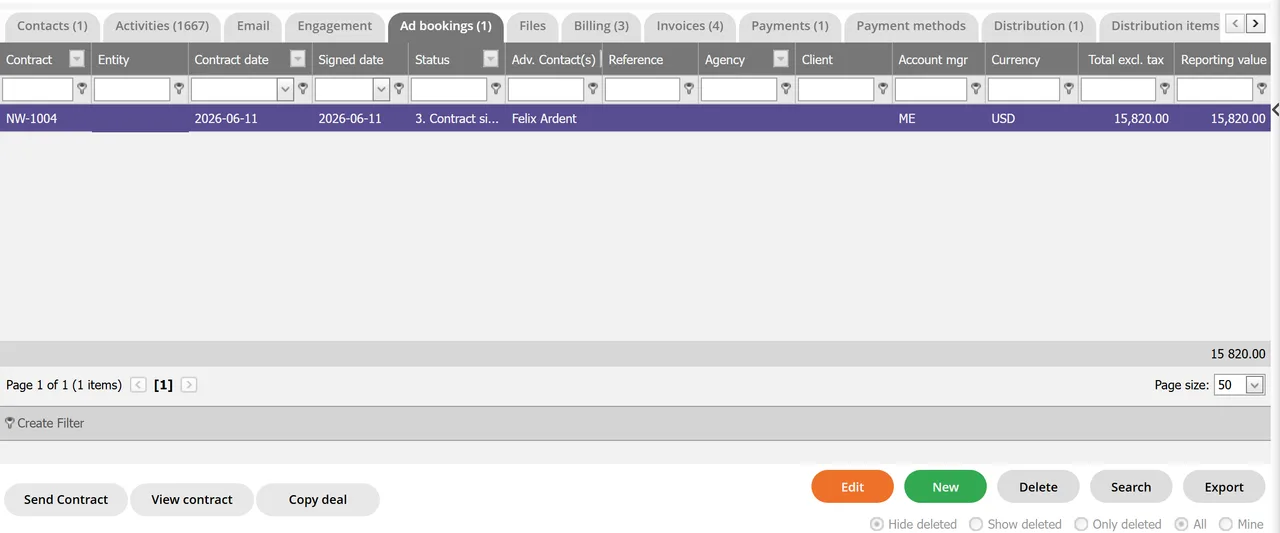
- Open the Ad bookings tab and click the contract.The Status column shows where the contract is, and Adv. Contact(s) shows who will receive it.
- Click View contract under the list to check the contract PDF before you send it.
- Click Send Contract.An email to the contact opens, with the contract attached as a PDF.
- Check the recipient and the subject, and keep the portal link in the text. Then send the email.The contract moves from 1. Contract preparation to 2. Contract sent.
- When the advertiser has signed, the Status column reads 3. Contract signed, and Signed date is filled in.
What you see
- On your side, a line is added to the contract notes when it is signed: Signed by the name, the IP address, and the date and time. RunMags emails Notification from RunMags - Contract signed to the account manager.
- On the advertiser’s side, the email link opens their Customer portal. The Agreements tab lists the contracts that are sent or signed, with the Status Awaiting signature or Signed.
- View agreement opens the contract. Sign opens a window where the contact confirms that they have read the agreement and may sign for their company. It shows their name, email address and IP address.
- The contact clicks Sign agreement, and the window closes with The contract has been signed.
Good to know
- The email text comes from the template Send advertising agreement, under Admin > Templates > Text email templates.
- Each contact has their own portal link, in the Client portal field on the contact. A link sent for one contract shows only that contract.
- In the portal, an advertiser can also pay invoices by card. See How to collect payments.
- You can also set 3. Contract signed by hand in the Edit contract window. That needs the Approve right.
What it does not do
- The portal shows no contract that is still at 1. Contract preparation.
- There is no drawn signature or identity check. The contact confirms with a button, and RunMags records their name, email address and IP address.
- Signing does not take a payment. Card payment is on invoices, not on the contract.
If something goes wrong
- The advertiser says there is nothing to sign. Check the Status column: the portal shows only contracts at 2. Contract sent or 3. Contract signed. Check also that the link is the one for this contact.
- The advertiser sees This agreement has already been signed. The contract is already signed. Check Signed date in the Edit contract window.
Learn more
Read the product page: Contract management and fulfillment. Or go back to all RunMags help.