
HELP
How to make a flipbook of an issue in RunMags
Turn an issue into a flipbook that readers page through on screen: spreads on a computer, one page at a time on a phone. Magazine Studio builds it from the page images it already holds for the issue.
You can keep the flipbook inside RunMags, share it with a private link, or publish the finished PDF of the issue as a public or subscribers-only digital edition.
Checked against the product on
Before you start
- You need access to Production in the left-hand menu. If you cannot see it, ask your RunMags administrator.
- The issue must have pages in its plan.
- For a digital edition, you also need the finished print PDF of the issue, with one PDF page for each flatplan page.
Steps
- In the left-hand menu, open Production > Magazine Studio (beta), and choose the magazine and the issue at the top left.
- Click Print / Export / Share at the top right.
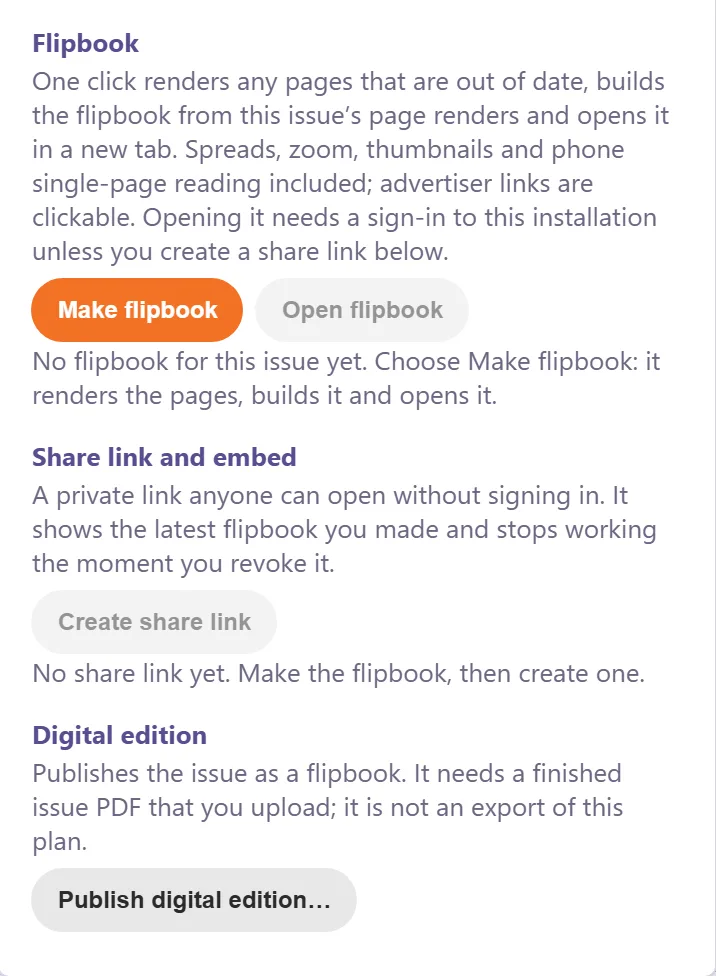
- Under Flipbook, click Make flipbook.A new browser tab opens and says Making your flipbook…. Keep Studio open in the first tab.
- Wait while Studio renders the pages and builds the flipbook. It shows its progress under the buttons, and the flipbook opens in the new tab when it is ready.
- Turn the pages with the arrow buttons or the arrow keys. Use Zoom to enlarge a page.
- To let people read it without signing in, click Create share link under Share link and embed. Then click Copy link, or Copy embed code to put the flipbook on your own website.
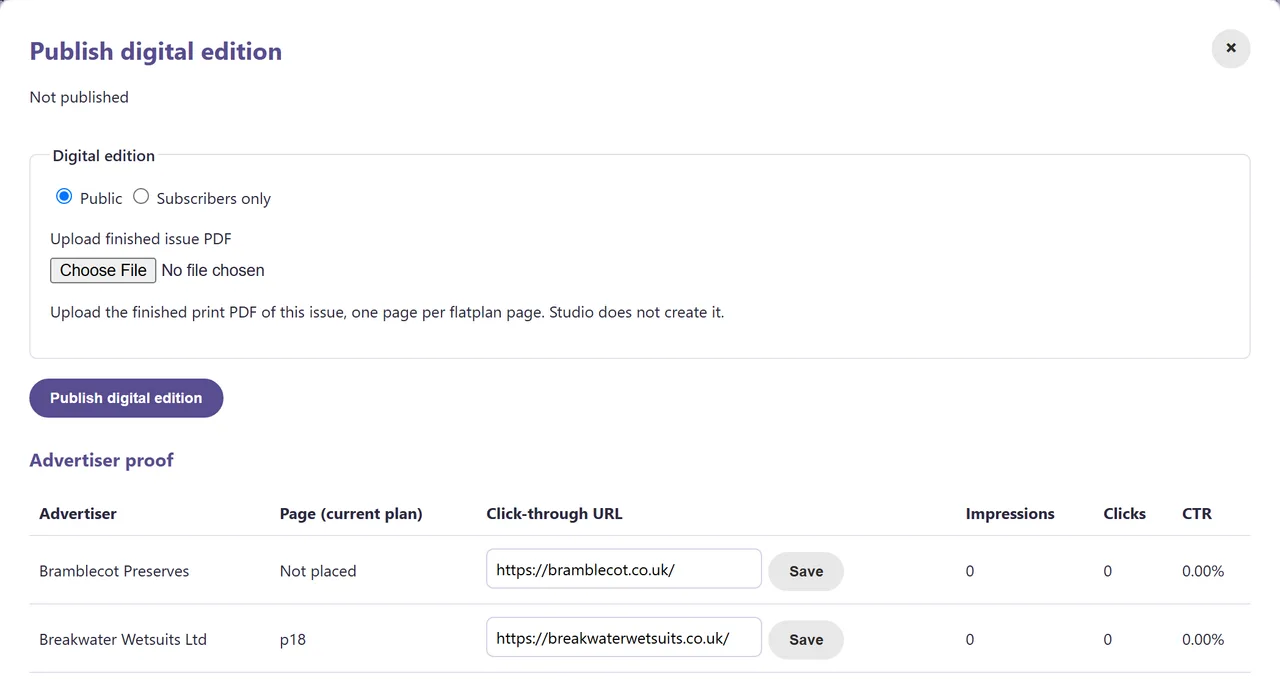
- To publish a finished PDF instead, click Publish digital edition… under Digital edition. Choose Public or Subscribers only, choose the PDF under Upload finished issue PDF, and click Publish digital edition.
What you see
- Before the first flipbook, Open flipbook and Create share link are grey, and the panel says No flipbook for this issue yet.
- While it is made, a progress bar and messages such as Rendering pages: 12 of 32 ready….
- In the flipbook, the page number (for example p. 1 / 32) and the buttons Zoom, Fullscreen, Show thumbnails, Previous page and Next page. A placed ad links to the advertiser’s web address, if one is saved for the booking.
- After you create a share link, the boxes Share link and Embed code, and a Revoke link button.
Good to know
- If you change the plan later, Studio says The issue changed since the last flipbook. Click Make flipbook again. The share link stays the same and shows the newest flipbook.
- Anyone signed in to your RunMags can open the flipbook. Everyone else needs the share link. Revoke link stops the link and every embed of it.
- Ad links use the Click-through URL of each booking, which you can enter in the Advertiser proof table. Only addresses that start with https:// become links.
- A Subscribers only digital edition opens for subscribers whose current subscription covers the issue.
What it does not do
- Studio does not create the print PDF. A digital edition needs the finished PDF that you upload.
- The flipbook from Make flipbook has no text search and no contents list.
- A digital edition can have at most 400 pages.
If something goes wrong
- Studio says page rendering stopped, and to try again in a few minutes. Click Make flipbook again.
- Studio says your browser blocked the new tab. Allow pop-ups for RunMags in your browser, then click Open flipbook.
- Studio says You cannot access this flipbook. Your user has no rights to this issue. Ask your RunMags administrator.
Learn more
Read the product page: Flatplan. Or go back to all RunMags help.