
HELP
How to place booked ads on the flatplan in RunMags
Put every ad you have sold in an issue on a page. Magazine Studio lists the ads that are booked but not on a page yet, and you drag each one to its place.
Checked against the product on
Before you start
- You need access to Production in the left-hand menu. If you cannot see it, ask your RunMags administrator.
- The ad must be booked into the issue, with a signed order. Studio does not create bookings.
- The issue needs pages. See How to plan the pages and sections of an issue.
Steps
- In the left-hand menu, open Production > Magazine Studio (beta), and choose the magazine and the issue at the top left.
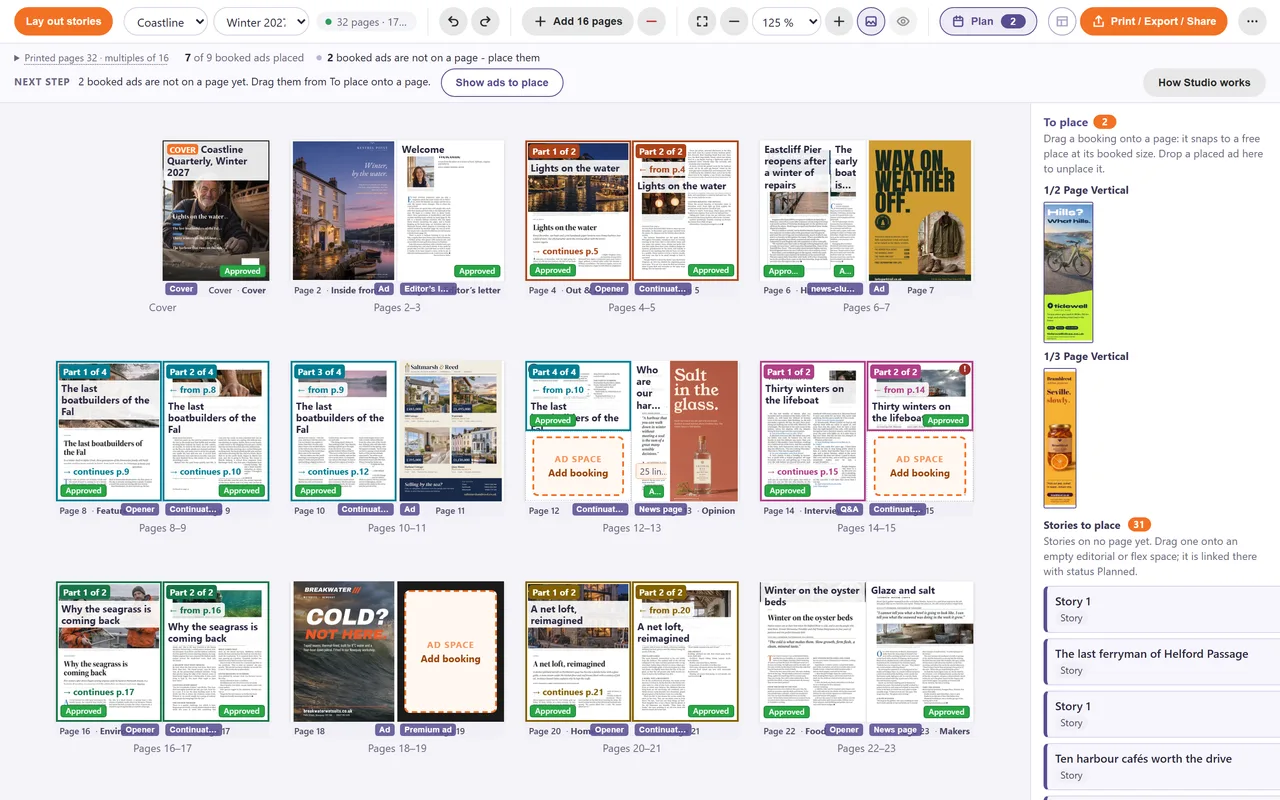
- Read the line under the toolbar. It says how many booked ads are placed, for example 7 of 9 booked ads placed, and how many are not: 2 booked ads are not on a page - place them.
- Click Show ads to place.The Plan panel opens on the right, at the list headed To place.
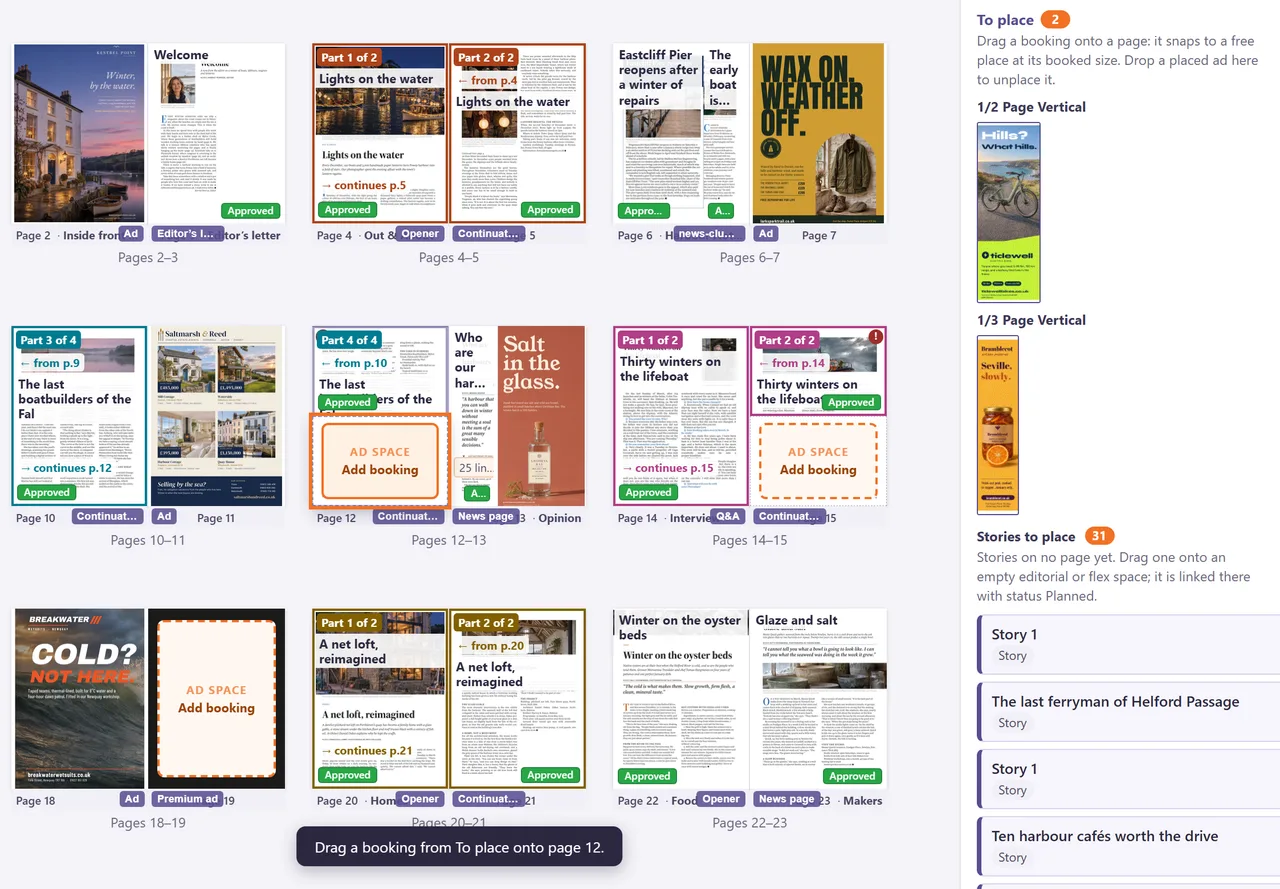
- Find the booking in the list. Bookings are grouped by size, for example 1/2 Page Vertical. Point at a card to see the advertiser, the size and the contract number.
- Drag the card onto a page, or onto an empty AD SPACE of the same size.The ad keeps its booked size and snaps to a free place on the page.
- Check the line under the toolbar. The placed count goes up by one, and the card leaves To place. To undo, press Ctrl+Z.
What you see
- 7 of 9 booked ads placed and, in orange, 2 booked ads are not on a page - place them. The Plan button shows the open count as a number. When every booking is placed, the orange line goes away.
- Under To place, a card for each open booking, with the artwork if the advertiser has sent it, or No artwork yet.
- On the plan, an empty ad space is a dashed orange box that says AD SPACE and Add booking. Clicking Add booking opens To place and shows Drag a booking from To place onto page 12. It places nothing.
- A placed ad shows on its page with the artwork or the advertiser’s name, and an Ad label under the page.
Good to know
- You can also place an ad with buttons: click Add content on an empty page, open the Ad tab, and click Place next to the ad.
- To move a placed ad, drag it to another page. To unplace it, drag it back onto To place. Ctrl+Z undoes both.
- A booking still in preparation can appear in To place, labelled Preparation - not signed.
- For the full list of bookings of a magazine, open Channels > Print > Booked ads.
What it does not do
- Studio does not create or change a booking, a price or a contract. Bookings are made in ad sales.
- It does not place an ad on a locked page, or where there is no free place of the booked size.
- To place shows only the issue you chose, not bookings of other issues.
If something goes wrong
- Studio says there is no free place of the booked size on this page. Make room on that page, or drag the ad from To place onto another page.
- Studio says This page is locked. Unlock it first. Right-click the page and choose Unlock page, or choose another page.
- The ad is not in To place. Check that the ad is booked into this issue and that its order is signed. Bookings are made in ad sales, and then appear under To place.
Learn more
Read the product page: Flatplan. Or go back to all RunMags help.