
HELP
How to plan the pages and sections of an issue in RunMags
Decide how many pages an issue has and which section each page belongs to. Do this before you place ads and stories. You can change it at any time.
Magazine Studio counts pages in printed sheets. You add pages a sheet at a time, and Studio warns you when the total is not a whole number of sheets.
Checked against the product on
Before you start
- You need access to Production in the left-hand menu. If you cannot see it, ask your RunMags administrator.
- The issue must already exist in RunMags.
- To use sections, the magazine must already have them. Sections are set up under Channels > Print > Sections, not in Studio.
Steps
- In the left-hand menu, open Production > Magazine Studio (beta), and choose the magazine and the issue at the top left.If Studio says Choose an issue, open Production > Print, pick the issue there, and then open the Magazine Studio (beta) tab.
- Read the line under the toolbar. Printed pages 32 · multiples of 16 means 32 pages, or two whole 16-page sheets. Click the line to see the breakdown.
- Open the … menu at the top right. Under Sheet, choose the size of a printed sheet: 4 pages, 8 pages, 16 pages or 32 pages.Studio saves the size for this issue. The default is 16 pages. On a wide screen, Sheet sits in the toolbar instead.
- In the list under Sheet, choose the section for new pages. It starts on No section.
- Click Add 16 pages in the toolbar. The label follows the sheet size you chose.Studio adds the pages at the end of the issue and selects them.
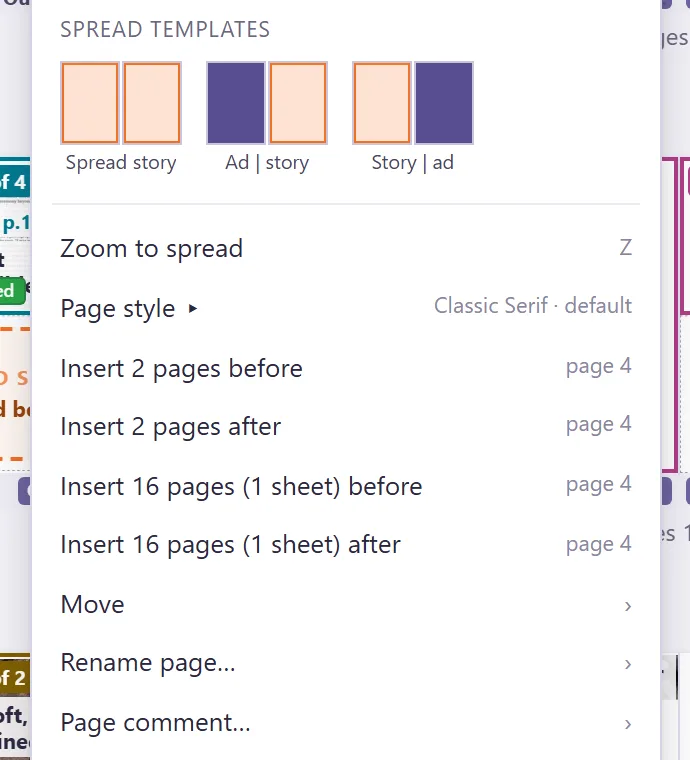
- To add pages in the middle, right-click a page number and choose Insert 2 pages before, Insert 2 pages after, Insert 16 pages (1 sheet) before or Insert 16 pages (1 sheet) after.
- To put pages into a section, click a page (Ctrl+click for several, Shift+click for a range). Click Plan, and under Sections click the section name. No section takes them out again.

What you see
- The line Printed pages 32 · multiples of 16. When the total is not a whole number of sheets, it becomes a warning, for example Printed pages 30 — not a multiple of 16, and the breakdown shows how many pages are left over.
- After Add 16 pages, new spreads at the end of the plan, and a short message such as Added 16 pages (1 sheet) at the end of the issue.
- A coloured band with the section name above every spread that has a section.
- Under Sections in the Plan panel, one row per section with its colour and page count. If the magazine has no sections, the panel says This publication has no sections yet.
Good to know
- Changes are saved as you make them. There is no Save button. Undo and Redo are in the toolbar (Ctrl+Z and Ctrl+Shift+Z).
- Pages are added and removed in pairs, so a spread never has one page. The printed total also counts special features such as bound-in inserts and cover gatefolds.
- To move a page, drag it. To move a spread, drag it by the label under the spread.
What it does not do
- You cannot type a page count. Pages are added a sheet at a time (4, 8, 16 or 32 pages) or two at a time.
- Add 16 pages adds at the end only. Remove (it asks you to click twice) takes the last sheet off the end, and only if none of those pages holds a story, an ad, artwork or a note.
- Studio does not create, rename or recolour sections. It only puts pages into sections that exist.
If something goes wrong
- Studio says the last pages can’t be removed because they hold content or ads. Studio names the pages and changes nothing. Move or clear the content on those pages, then click Remove again.
- Studio says Select pages or spreads first, then pick a section. Click one or more pages in the plan, then click the section name.
- Studio says the flatplan is read-only until Magazine Studio (beta) is switched on. The page and section buttons are greyed out. Ask your RunMags administrator to switch Magazine Studio (beta) on.
Learn more
Read the product page: Flatplan. Or go back to all RunMags help.