
HELP
How to print the flatplan in RunMags
Print the plan of an issue so the team can see every spread on paper, or save it as a PDF and send it to your printer, designer or editor.
The printout shows each spread with the booked ads, the stories and the open space. It also lists anything still open in the plan, such as ads that are booked but not yet placed.
Checked against the product on
Before you start
- You need access to Production in the left-hand menu. If you cannot see it, ask your RunMags administrator.
- The issue must already exist in RunMags.
Steps
- In the left-hand menu, open Production > Magazine Studio (beta).
- At the top left, choose the magazine and the issue.If Studio says Choose an issue, open Production > Print, pick the issue there, and then open the Magazine Studio (beta) tab.
- Read the line under the toolbar. It tells you how many booked ads are placed and what is still open.
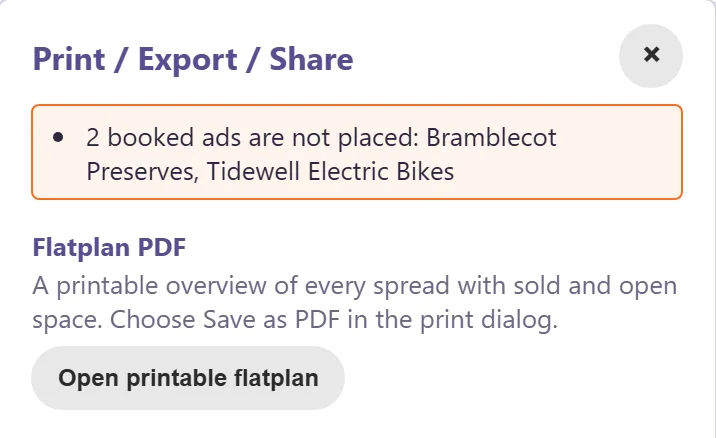
- Click Print / Export / Share at the top right.
- Check the list of open items at the top of the panel. You can still print: the open items are printed at the top of the flatplan.
- Under Flatplan PDF, click Open printable flatplan.The flatplan opens in a new browser tab, and the print dialog opens with it.
- Choose your printer. To share the flatplan instead, choose Save as PDF as the printer and save the file.
What you see
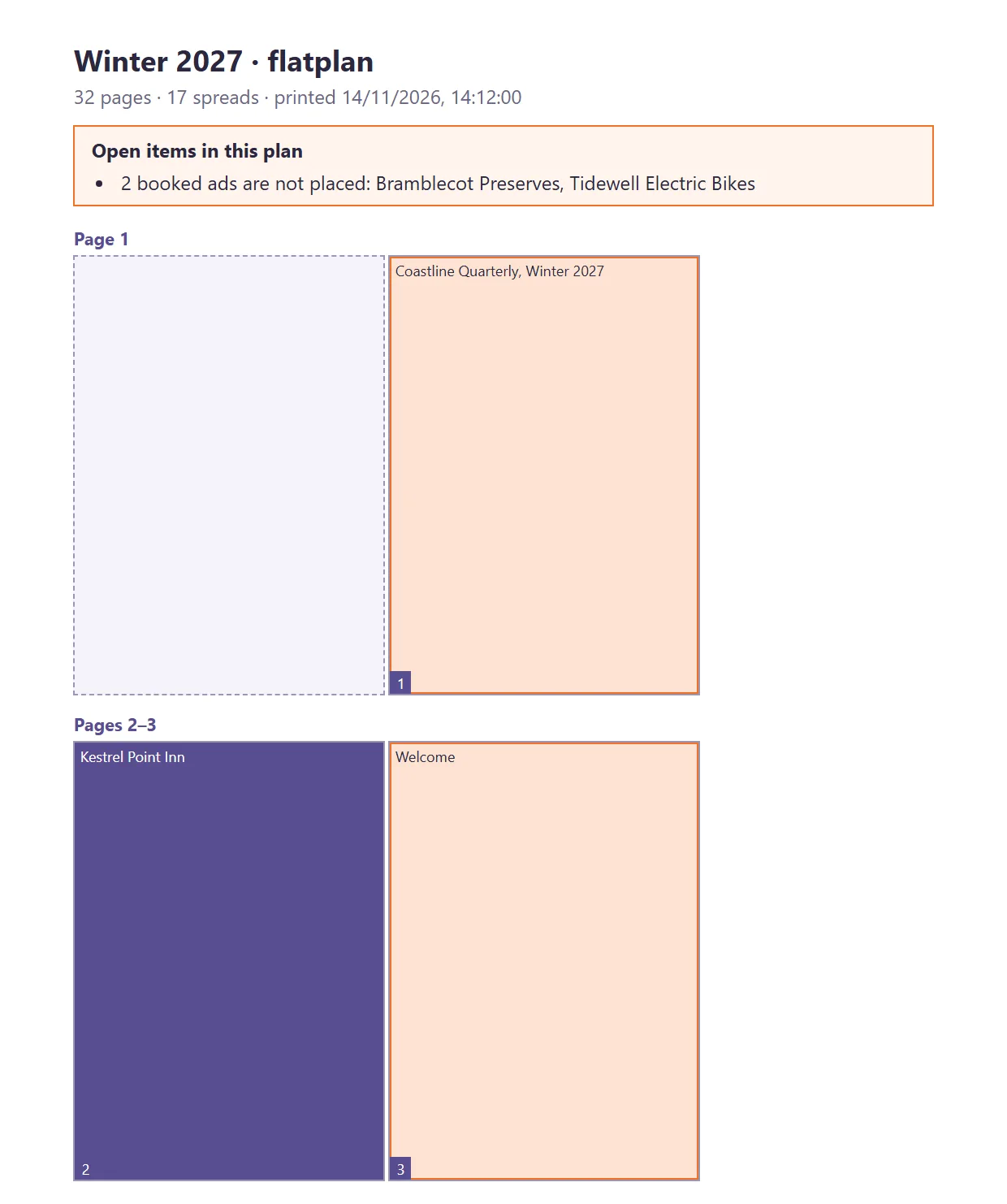
- A heading with the issue name, the number of pages and spreads, and the date and time you printed it.
- A box headed Open items in this plan, if anything is still open: booked ads that are not on a page, pages with no content, and stories that are not approved yet.
- One spread per row, with the page numbers. A section name is shown next to the page number when the page belongs to a section.
- Booked ads in purple, with the advertiser’s name. Editorial in light orange, with the story title.
- Open space in white, marked Open or Ad space. A dashed grey box where a spread has only one page, for example next to the front cover.
Good to know
- The printout shows the plan as it is when you click. Print again after you change the plan.
- It shows names and titles, not the page artwork.
What it does not do
- No settings for page size or spreads per page: the printout is set up for A4 landscape.
- It is a plan of the issue, not the print-ready file for your printer.
If something goes wrong
- Nothing opens, and Studio says your browser blocked the printable flatplan. Allow pop-ups for RunMags in your browser and click Open printable flatplan again.
- The print dialog does not open. Use your browser’s print command in the new tab (Ctrl+P on Windows, Cmd+P on a Mac).
- Open printable flatplan is greyed out. Wait until the issue has finished loading. If the issue has no pages yet, add pages first.
Learn more
Read the product page: Flatplan. Or go back to all RunMags help.