
HELP
How to sell web and social media ads in RunMags
Sell banners on your websites and posts on your social channels, with the products, prices and bookings in RunMags next to your print ads.
Web and social ads are not a separate kind of contract. They are lines on the normal contract, on its Web and Social tabs. You set up the channel and its products once, then sell them like any other ad.
Checked against the product on
Before you start
- You need Channels, Ad sales and Production in the left-hand menu. If one is missing, ask your RunMags administrator.
- The advertiser must have a contract. See How to book ads and manage contracts.
Steps
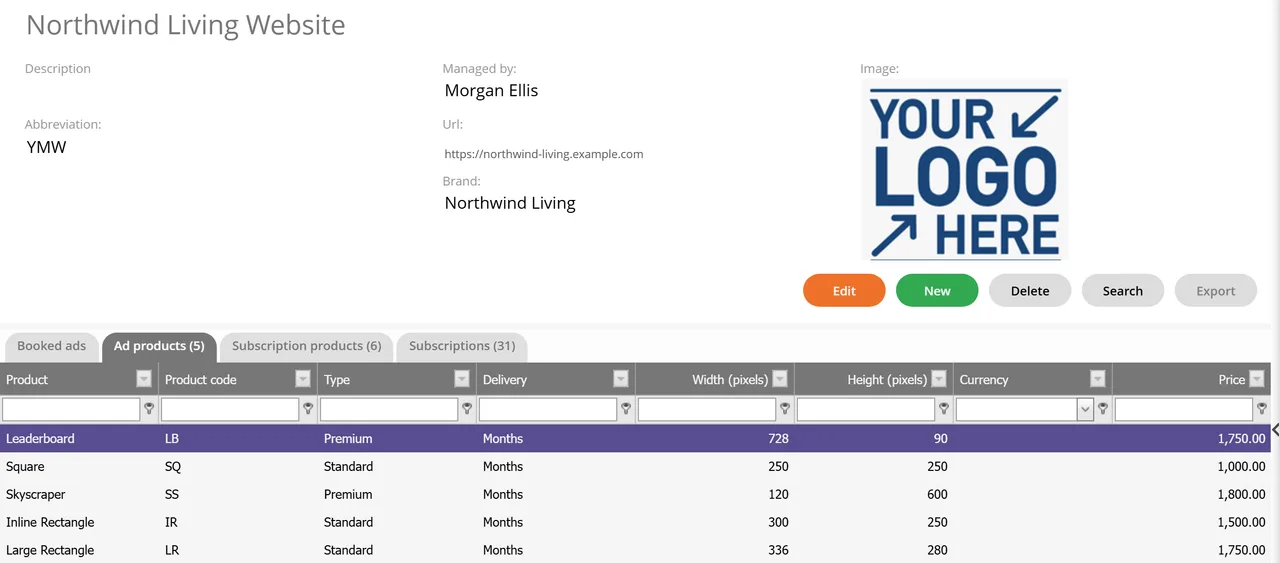
- In the left-hand menu, open Channels > Web for a website, or Channels > Social for a social media channel.The top of the page shows the selected channel. To add another, click New in the top row of buttons; Search finds the others.
- Open the Ad products tab. It lists what you can sell on the channel, with code, type and price, and for web products the delivery period and the size in pixels.
- To add a product, click New under the list and fill in the form.
- To sell a product, open Ad sales > Organizations, then the advertiser’s Ad bookings tab. Click the contract and click Edit.
- In the Edit contract window, open the Web or Social tab, click New, choose the product and the dates, and click Save and close.
- Click Save and Close in the Edit contract window.
- To see what is booked, open the Booked ads tab under Channels > Web or Channels > Social. For a calendar of banner positions, open Production > Web and the Ad / Banner Calendar tab.
What you see
- On Channels > Web, the selected website with Abbreviation, Managed by, Url and Brand, and the tabs Booked ads, Ad products, Subscription products and Subscriptions. Channels > Social looks the same, with the channel Type.
- Booked ads for a website lists Order #, Organization, Start date, Order status, Product and Account mgr.
- Production > Web has the Ad / Banner Calendar, with one row for each banner position and a list headed Bookings to place:. Production > Social has Booked ads and Calendar.

Good to know
- One contract can hold print, web, social, event and newsletter lines, each on its own tab.
- Product types, discount rates and the full lists of web and social products are under Admin > Product settings.
- Loading, discount and agency percentages are set on each line of the contract, as for print.
What it does not do
- There is no separate web or social contract. Every web and social ad is a line on an ordinary contract.
- No availability check: no holds, no availability grid and no double-booking guard for channel products.
- Advertisers cannot book web or social ads themselves. Your staff add the lines to the contract.
If something goes wrong
- Booked ads says No number in the tab above - nothing here yet! Nothing is booked for the selected channel. Check that you are on the right website or social channel, and that the line is on the contract’s Web or Social tab.
- The Ad / Banner Calendar is empty. Pick the right website under Selected channel.
- A tab or menu item is missing. The menu follows your rights. Ask your RunMags administrator to check your user group.
Learn more
Read the product page: Advertising sales. Or go back to all RunMags help.