
HELP
How to set up products and prices in RunMags
Your products are the list your sales team sells from. Each print magazine has its own advertising products with a price, editorial products without a price, and subscription products with a price and a length.
Checked against the product on
Before you start
- The magazine must already exist. See How to set up a magazine and its issues.
- You need access to Channels in the left-hand menu. If you cannot see it, ask your RunMags administrator.
- Have your price list ready: the products, their sizes and their prices.
Steps
- In the left-hand menu, open Channels > Print. To work on another magazine, click Search and choose it.
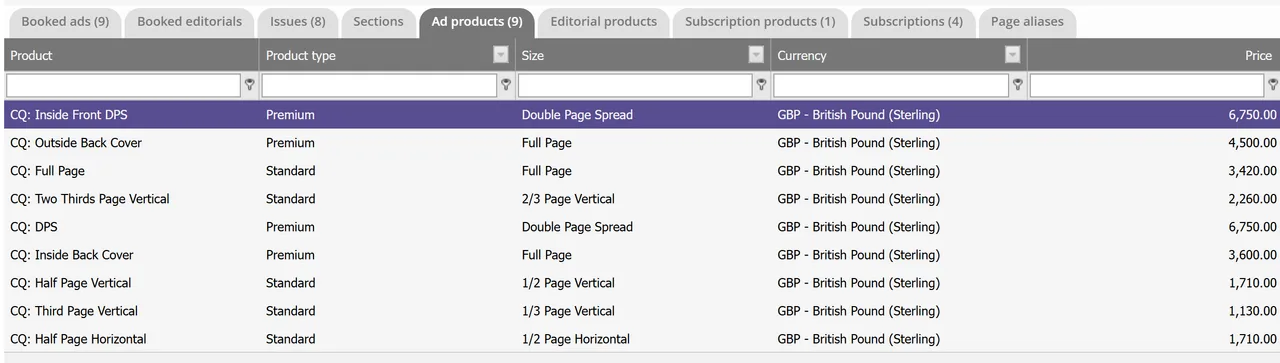
- Open the Ad products tab.The list shows each advertising product with its Product, Product type, Size, Currency and Price.
- Click New under the list. To change a product, select it and click Edit.
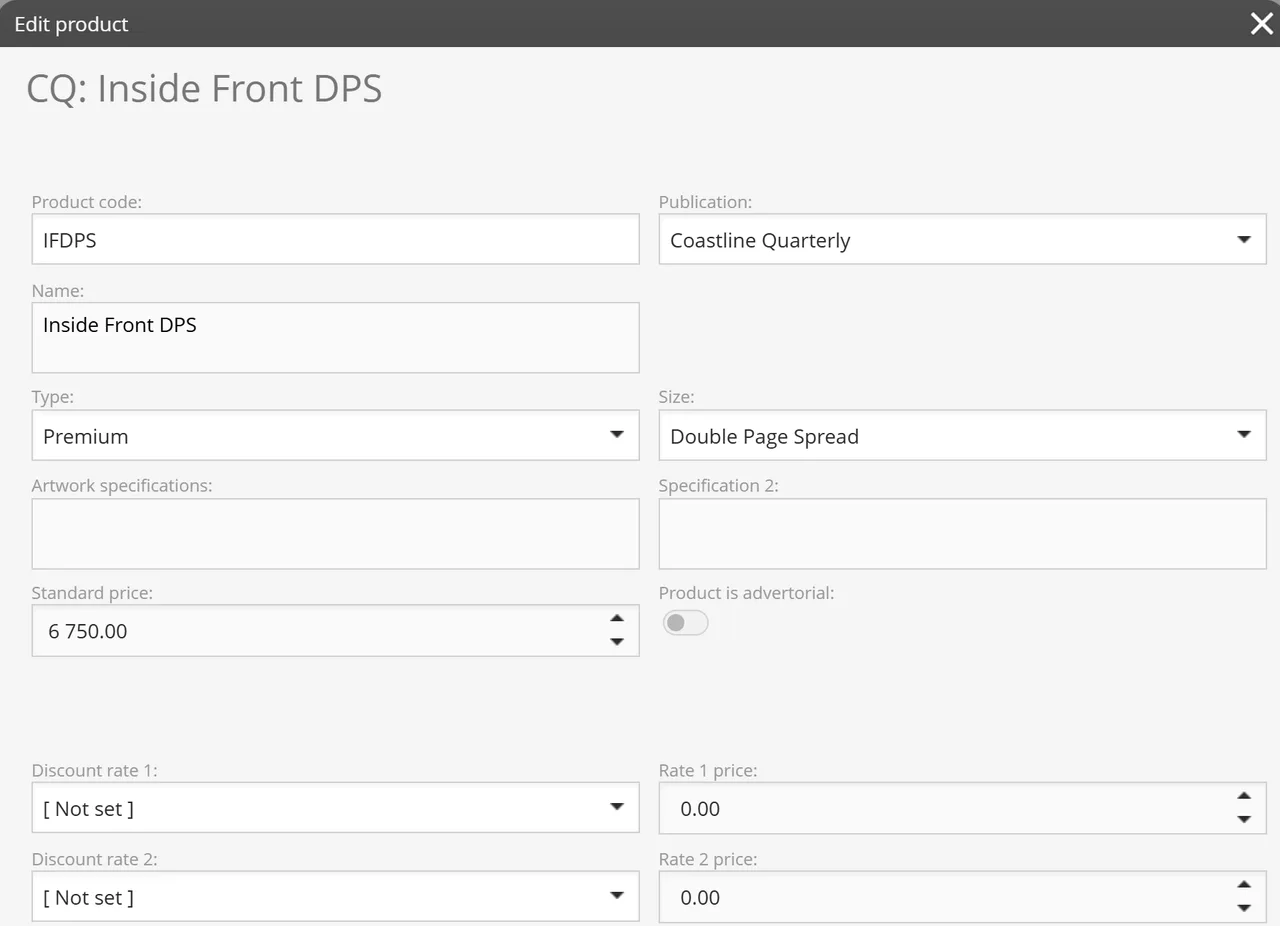
- Fill in Product code, Name, Type and Size. Add Artwork specifications if you want them kept with the product.
- Enter the Standard price. For preset prices, choose a Discount rate (for example one you named 12X) and enter its price beside it. There are five pairs, Discount rate 1 to Discount rate 5. Click Save.
- Open the Editorial products tab, click New, and enter the Product, a Description, the Sort order and, if you want, a Size. Click Save.
- Open the Subscription products tab, click New, and enter the Product name, Price, Length and Length type. Set Price includes tax and Auto renew / recurring to suit the product. Click Save.
What you see
- On Ad products, one row per product, and under the list Edit, New, Delete, Search, Export and Copy products.
- In the Edit product window: Product code, Publication, Name, Type, Size, Artwork specifications, Standard price, a Product is advertorial switch, and the five discount rates with their prices.
- On Editorial products, the columns Product, Description and Sort order.
- On Subscription products, the columns Product, Length, Length type, Price includes tax, Ongoing (no end), Digital access and Price.
Good to know
- The Type choices, such as Premium and Standard, are set under Admin > Product settings > Print product types. The discount rates are set under Admin > Product settings > Print discount rates.
- A subscription product can also carry shipping fees by zone (Zone 1 shipping fee to Zone 3 shipping fee) and a Default shipping fee (everywhere else).
- The product window has Override sales account and Override currency for a product that needs another account or currency.
What it does not do
- An editorial product has no price. It records an editorial commitment, not something you invoice.
- An advertising product has one standard price and up to five preset rates. There is no price per issue.
- A product has no field for how many you can sell. It holds a price, a size and a type, not a capacity.
If something goes wrong
- New and Edit are greyed out. Wait for the list to finish loading, then click a row.
- A product is missing from the list. Check that you opened the right magazine. Under the list, Show deleted shows rows that were deleted.
- The type or discount rate you need is not in the list. Add it under Admin > Product settings first, then open the product again.
Learn more
Read the product page: Advertising sales. Or go back to all RunMags help.