
HELP
How to sign in and invite users in RunMags
Get yourself into RunMags, and get your colleagues in. You sign in with an email address and a password, or with Google. A colleague gets their own sign-in when you invite them.
Checked against the product on
Before you start
- To invite a colleague, you need access to Admin in the left-hand menu. If you cannot see it, ask your RunMags administrator.
- Each colleague needs their own work email address. The invitation goes to that address.
Steps
- If you were invited, open the email Invitation to use RunMags.com and click its link.The link works for 24 hours.
- On the Activate page, type a password under Create a password and click Activate account.The password needs at least 8 characters, with at least one number.
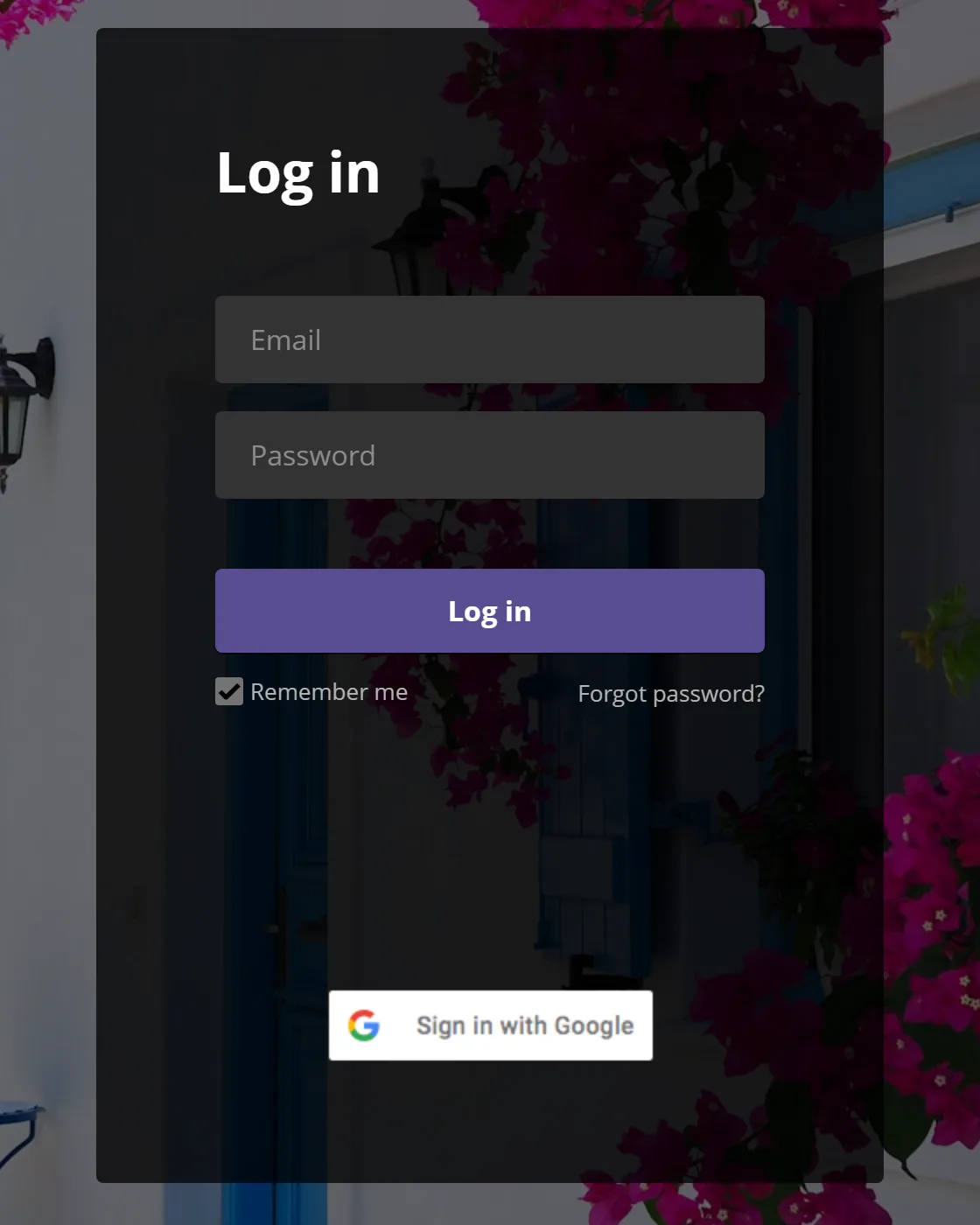
- On the Log in page, type your email address and password, and click Log in. Or click Sign in with Google.
- To invite a colleague, open Admin > Account, then the Invite co-workers tab.
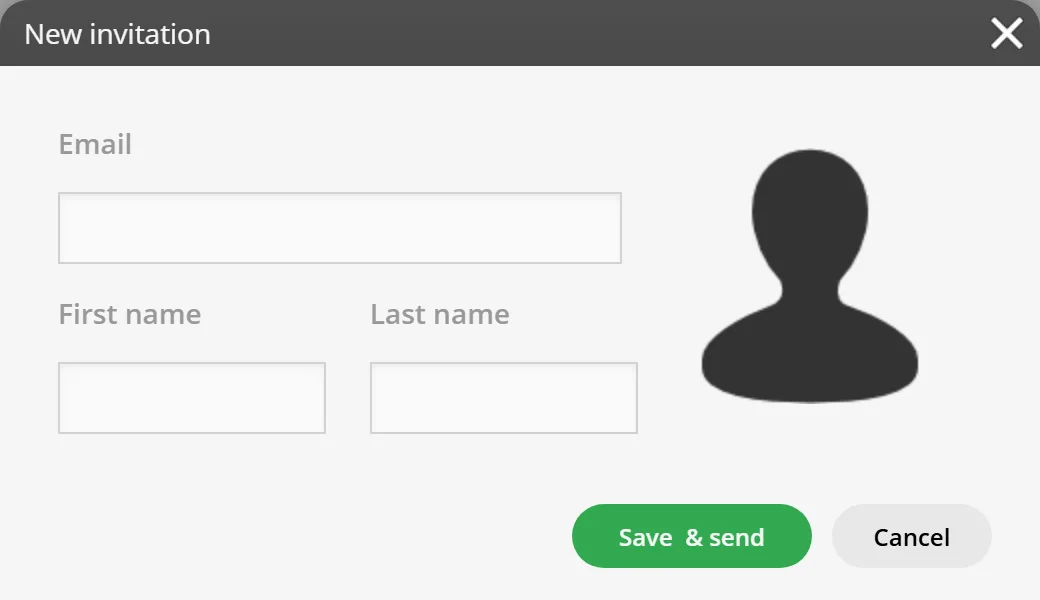
- Click New invitation.
- Type the colleague’s Email, First name and Last name, and click Save & send.RunMags emails the invitation. Your colleague then follows steps 1 to 3.
What you see
- After you log in, the left-hand menu shows the groups your rights allow, from Home to Admin.
- Admin > Account > Invite co-workers lists the people invited, with User email, Created date, First name, Last name, Login access and Last login, and the buttons New invitation and Resend invitation.
Good to know
- A new user starts with the basic security groups. To change what someone may do, open Admin > Users, find the person, and use the Member? switches on the User rights tab.
- If an invitation is lost or has run out, select the person under Invite co-workers and click Resend invitation. The old link then stops working.
- Your own details are under Home > My profile. To send email from RunMags with your own address, add it on the Email accounts tab there and verify it from the email you receive.
- If your email address belongs to more than one RunMags account, RunMags asks which one you want after you log in.
What it does not do
- An invitation does not contain a password. Your colleague creates it.
- The invitation window has no field for rights. You set them afterwards.
- A password reset email does not sign you in. You still log in afterwards.
If something goes wrong
- The Activate page says the activation link is invalid or has expired. Ask the person who invited you to click Resend invitation.
- You forgot your password. On the Log in page, click Forgot password?, type your address and click Send me a link! The link in the email Reset your password for RunMags.com works for one hour. Type the new password twice and click Reset now.
- The window says User invitation was not successful! Check the email address and try again. If it still fails, ask Maggie.
Learn more
Read the product page: Security. Or go back to all RunMags help.