
HELP
How to set up the subscriber portal in RunMags
A subscriber portal is a web page, hosted by RunMags, where readers sign up for a subscription on their own. You set its look, its text and the options it offers. Orders through it are recorded in RunMags with the reader’s details.
You can run several portals at once, for example one at full price and one with a discounted offer. Each portal has its own web address to link from your website or emails.
Checked against the product on
Before you start
- You need Subscription sales in the left-hand menu. If you cannot see it, ask your RunMags administrator.
- The subscription products you want to offer must exist. See How to set up products and prices.
- To take card payments, your card payment account must be connected to RunMags.
Steps
- In the left-hand menu, open Subscription sales > Portals.The top shows a campaign. Below it are the tabs Subscription portals, Connected subscription products and Subscription orders.
- To start a new offer, click New above the tabs. To use an existing campaign, click Search and pick it.
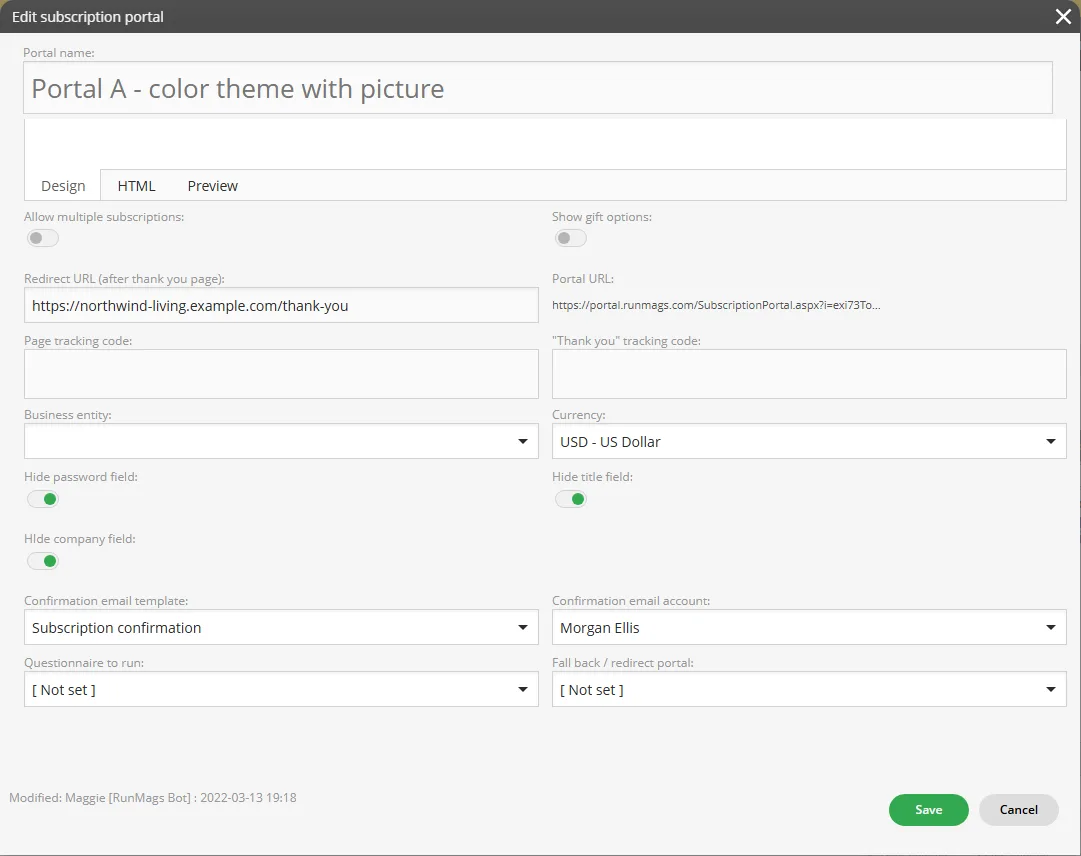
- On Subscription portals, click New at the bottom right, or select a portal and click Edit.
- Fill in Portal name, Start date/time, End date/time and Page title. Add a Top image and a Top bar logo, and write the text above and below the form in Top Html and Bottom Html.
- Set the options: Allow multiple subscriptions, Show gift options, Business entity, Currency, the confirmation email, and a Redirect URL (after thank you page) if readers should return to your site. Turn on the checkout you use, and click Save.
- On Connected subscription products, click New. Tick the products under Wrapped products, name the package, and set Sort and Package price. Set as default marks the option selected first. Click Save.
- On Subscription portals, copy the address in the Portal URL column (or the Word press shortcode). Open it to see what readers see, then link to it.
What you see
- Subscription portals lists each portal with Name, Portal start, Portal end, Portal URL and Word press shortcode.
- Connected subscription products lists the options with Subscription product name, Default product?, Sort and Price.
- Subscription orders lists the orders that came in through the campaign, with Order #, Order date, Subscriber, Paid amount and Outstanding.
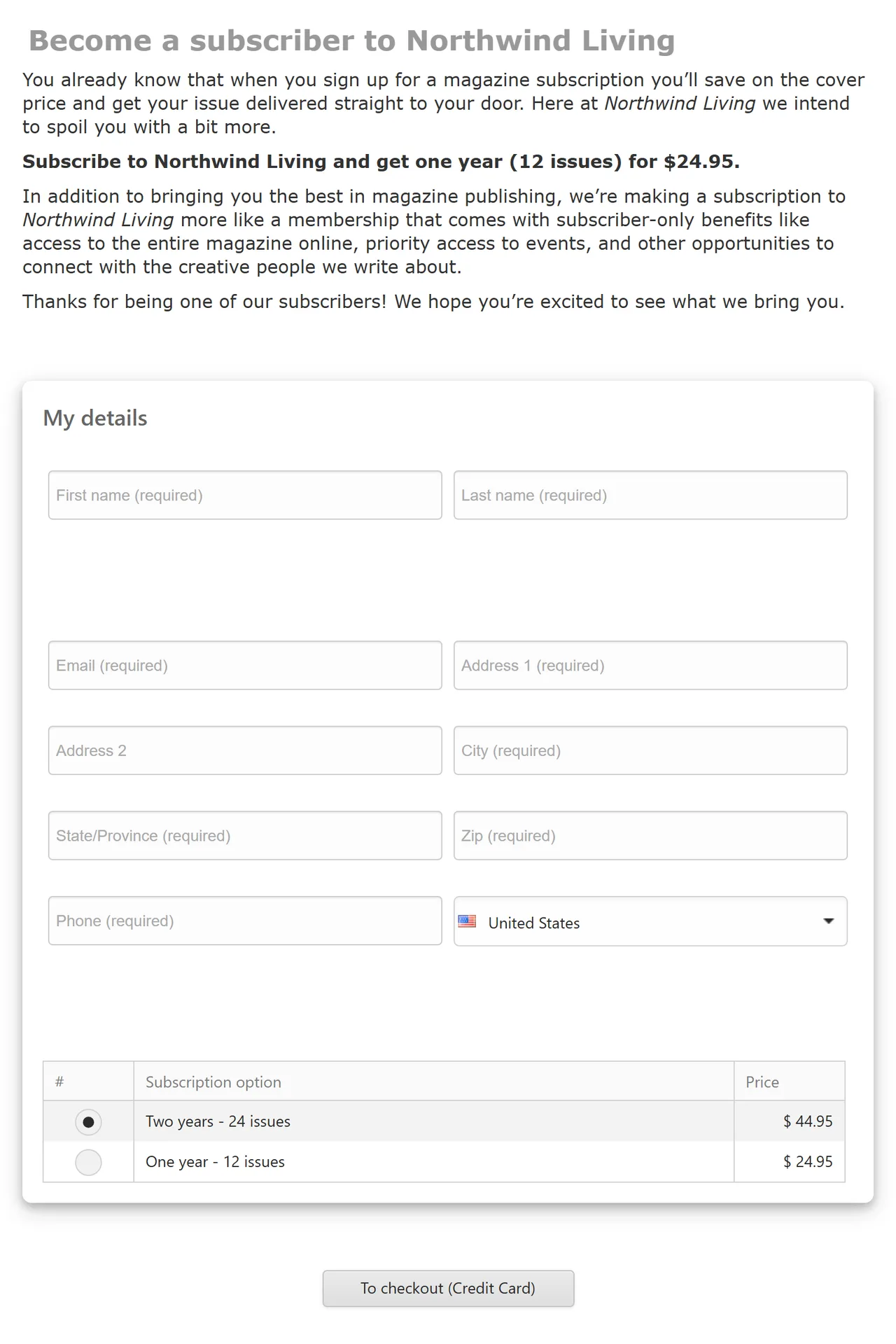
- The reader’s page shows your logo, top image and text, a My details form, a table of Subscription option and Price, and a To checkout (Credit Card) button.
Good to know
- A discounted offer is its own portal. Create a separate portal and connect only the discounted option to it. Readers of the full-price portal never see the discount.
- Package price is the price the portal shows. If a package wraps no products, the portal shows the product’s own price.
- When a reader renews through a portal, the form is filled in with the details RunMags already holds.
What it does not do
- There is no discount-code field. A discount is an option with its own price on its own portal.
- It does not publish itself on your website. You link to the Portal URL or paste the shortcode.
If something goes wrong
- A tab says Nothing here yet! The campaign has no portals, products or orders yet. Click New at the bottom right to add one.
- An option is missing on the reader’s page. Check that the product is connected on Connected subscription products of the same campaign.
Learn more
Read the product page: Subscriber portal. Or go back to all RunMags help.